
はじめに
VMファミリ、サイズなどの廃止情報をSharePointリストとAzure更新情報(RSSフィード)を組みあせて管理するための仕組みを構築したので手順をまとめます。
本コンセプト:会社で契約済みのMicrosoft 365(SharePoint)とPowerShellを組み合わせ、「Azure側の有料リソースは一切使わない(0円)」で自動化とステータス管理を実現する
構築する上でのポイント
- PnP.PowerShellモジュールが必須:SharePointリストを自動更新させます。
- PowerShellのコマンドは生成AIに一任:効率化の極みです。
- 通知はSharePoint標準のルールを活用:新規の情報を通知させて関係あるか把握します。
構築手順
サービスプリンシパル環境設定
SharePointリストを操作するために、PnP.Powershellがなければインストールしてください。
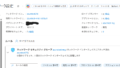
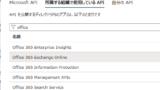
Install-Module -Name "PnP.PowerShell"PowerShell実行環境で自己証明書の発行を行い、MS365のEntraIDでアプリケーションを登録してください。詳細手順は以下と同じですが、APIのアクセス許可については「SharePoint」を付与してください。
PowerShellスクリプト
生成AI(Copilot)でPowerShellプログラム作成しました。思ったとおりに動かすためプロンプトのラリーは何度も発生しましたが、1時間あればできてしまいました。
細かな仕様は正直わからないところもあるので割愛しますが、処理概要は以下のとおりです。動作保証はしませんが、変数を正しく設定、実行環境の初期設定ができていれば動くと思います。
なお唯一の注意点はすべて英語です。翻訳はすみませんが生成AIなどを使って、ご自身で読み解いてください。
- https://aztty.azurewebsites.net/rss/updatesからcategory=retirementsを取得
- SharePointリストに追加・更新
- 詳細情報はハイパーリンクでAzure更新情報を開く
- 更新情報をメールで通知する
# SharePoint サイト URL
$SiteUrl   = <リストがあるSharePointサイト(サブサイトOK)>

# 対象リスト名(既存想定)
$ListTitle = "AzureRetirementInfo"

# App-only(サービス プリンシパル)認証情報
$ClientId   = <アプリケーションID>
$Thumbprint = <拇印>
$Tenant     =<@以降のテナント>    # または テナントID(GUID)

# RSS(Retirements カテゴリ:小文字必須)
$FeedUrl = "https://aztty.azurewebsites.net/rss/updates?category=retirements"

# 今日以降すべて=0、たとえば 180日以内のみ=180
$DaysAhead = 0

# ログ(Transcript)を TEMP に残す?(トラブル時に便利)
$EnableTranscript = $true

# リスト・列の自動作成を行う?(既存なら false 推奨)
$EnsureListAndFields = $false
# 列定義(内部名はあなたのリスト仕様に合わせる)
$ColumnsToEnsure = @(
  @{ DisplayName='URLKey';       InternalName='URLKey';       Type='Text';     EnforceUnique=$true; Indexed=$true },
  @{ DisplayName='URL';          InternalName='URL';          Type='Url' },
  @{ DisplayName='retirementon'; InternalName='retirementon'; Type='DateTime' },
  @{ DisplayName='published';    InternalName='published';    Type='DateTime' },
  @{ DisplayName='source';       InternalName='source';       Type='Text' }
)

#############################################
# ★ ここから下は触らない(ロジック部分) ★
#############################################

# 依存モジュール
try { Import-Module PnP.PowerShell -ErrorAction Stop } catch { Write-Error "PnP.PowerShell が見つかりません。`nInstall-Module PnP.PowerShell -Scope CurrentUser"; break }

# .NET アセンブリ(Windows PowerShell 5.1 には System.Web あり)
try { Add-Type -AssemblyName System.Web -ErrorAction SilentlyContinue } catch { }

# TLS
[Net.ServicePointManager]::SecurityProtocol = [Net.SecurityProtocolType]::Tls12
$ErrorActionPreference = 'Stop'

# Transcript(任意)
if ($EnableTranscript) {
    $fileName = "D:\scripts\AzrureRSSLogs\AzureRssGet.log"
    Start-Transcript -Path $fileName -ErrorAction SilentlyContinue | Out-Null
}

function Write-Info([string]$msg){ Write-Host $msg -ForegroundColor Cyan }
function Write-Good([string]$msg){ Write-Host $msg -ForegroundColor Green }
function Write-Warn([string]$msg){ Write-Host $msg -ForegroundColor Yellow }

# ---- SP 接続(App-only/証明書) ----
Write-Info "Connecting to SharePoint (App-only w/ certificate)..."
Connect-PnPOnline -Url $SiteUrl -ClientId $ClientId -Thumbprint $Thumbprint -Tenant $Tenant

# ---- リストの存在/列の確保(必要なら)----
if ($EnsureListAndFields) {
  $list = Get-PnPList -Identity $ListTitle -ErrorAction SilentlyContinue
  if (-not $list) {
    Write-Warn "リスト '$ListTitle' が無いため作成します。"
    $list = New-PnPList -Title $ListTitle -Template GenericList -OnQuickLaunch
  }
  $existing = Get-PnPField -List $ListTitle
  foreach ($c in $ColumnsToEnsure) {
    if (-not ($existing | Where-Object InternalName -eq $c.InternalName)) {
      Write-Info "列作成: $($c.DisplayName) ($($c.Type))"
      Add-PnPField -List $ListTitle -DisplayName $c.DisplayName -InternalName $c.InternalName -Type $c.Type | Out-Null
      if ($c.EnforceUnique) { Set-PnPField -List $ListTitle -Identity $c.InternalName -Values @{ EnforceUniqueValues = $true } | Out-Null }
      if ($c.Indexed)       { Set-PnPField -List $ListTitle -Identity $c.InternalName -Values @{ Indexed = $true } | Out-Null }
    }
  }
  # 既定ビューに列を出しておく(内部名で定義)
  try {
    $view = Get-PnPView -List $ListTitle -Identity 'All Items'
    Set-PnPView -List $ListTitle -Identity $view -Fields 'Title','retirementon','published','URL','source','URLKey' | Out-Null
  } catch {}
} else {
  # 既存リストにアクセスできるか軽く確認
  Get-PnPList -Identity $ListTitle | Out-Null
}

# ---- RSS 取得 ----
Write-Info "Fetching RSS..."
$headers = @{
  "Accept"     = "application/rss+xml, application/xml;q=0.9, */*;q=0.8"
  "User-Agent" = "RSSChecker/1.0 (+azure-retirements)"
}
$response = Invoke-WebRequest -Uri $FeedUrl -Headers $headers -TimeoutSec 30
if ($response.StatusCode -ne 200) { throw "RSS HTTP $($response.StatusCode)" }

# ---- RSS パース(XML 直読み:5.1 互換)----
[xml]$rss = $response.Content
if (-not $rss -or -not $rss.rss.channel.item) {
  throw "RSS の解析に失敗しました(items がありません)。"
}
$feedTitle = [string]$rss.rss.channel.title
$itemCount = @($rss.rss.channel.item).Count
Write-Info ("Feed: {0} / Items: {1}" -f $feedTitle, $itemCount)

# ---- 廃止日抽出ロジック(タイトル/説明から正規表現で抽出)----
$monthMap = @{
  January='01'; February='02'; March='03'; April='04'; May='05'; June='06';
  July='07'; August='08'; September='09'; October='10'; November='11'; December='12'
}
$regexes = @(
  # "on March 31, 2026" / "until September 15, 2028" / "effective December 31, 2025"
  '(?i)\b(on|by|until|through|effective)\s+(January|February|March|April|May|June|July|August|September|October|November|December)\s+\d{1,2},\s+\d{4}\b',
  # "2026-03-31" / "2026/3/31" / "2026.03.31"
  '\b20\d{2}13[01]|[12]?\d\b',
  # "2026 年 3 月 31 日"
  '20\d{2}\s*年\s*(1[0-2]|0?[1-9])\s*月\s*(3[01]|[12]?\d)\s*日'
)

function Get-RetirementDateFromText([string]$title, [string]$summary) {
  $all = (($title, $summary) -join "`n")
  foreach ($rx in $regexes) {
    $m = [regex]::Match($all, $rx)
    if ($m.Success) {
      $val = $m.Value.Trim()
      foreach ($k in $monthMap.Keys) { $val = $val -replace "(?i)\b$k\b", $monthMap[$k] }
      $val = $val -replace '(?i)^(on|by|until|through|effective)\s+', ''
      if ($val -match '年') { $val = $val -replace '\s*年\s*','-' -replace '\s*月\s*','-' -replace '\s*日','' }
      $val = $val -replace ',', '' -replace '\.', '-'
      try {
        return ([datetime]::Parse($val, [Globalization.CultureInfo]::InvariantCulture)).Date
      } catch { }
    }
  }
  return $null
}

# ---- URL 正規化(URLKey 用):5.1 互換 ----
function Normalize-Url([string]$u) {
  if ([string]::IsNullOrWhiteSpace($u)) { return $null }
  try {
    $uri = [System.Uri]$u

    # クエリのパース(System.Web を使用)
    $qs = [System.Web.HttpUtility]::ParseQueryString($uri.Query)

    # 追跡系パラメータを除去
    foreach ($k in @('utm_source','utm_medium','utm_campaign','utm_term','utm_content','WT.mc_id','ocid')) {
      if ($qs[$k]) { $qs.Remove($k) }
    }

    # クエリ再設定(5.1 互換の if/else)
    $builder = New-Object System.UriBuilder($uri)
    if ($qs.Count -gt 0) {
      $builder.Query = $qs.ToString()
    } else {
      $builder.Query = $null
    }

    # 末尾スラ削除+小文字化
    $norm = $builder.Uri.AbsoluteUri.TrimEnd('/')
    return $norm.ToLowerInvariant()

  } catch {
    return $u.ToLowerInvariant().TrimEnd('/')
  }
}

# ---- XML → 対象オブジェクトへ ----
$today    = (Get-Date).Date
$deadline = if ($DaysAhead -gt 0) { $today.AddDays($DaysAhead) } else { [datetime]::MaxValue }

# a10 名前空間(Atom)も使えるようにしておく
$ns = New-Object System.Xml.XmlNamespaceManager($rss.NameTable)
$ns.AddNamespace("a10", "http://www.w3.org/2005/Atom")

$rows = foreach ($it in $rss.rss.channel.item) {
  $title   = [string]$it.title
  $summary = [string]$it.description

  # --- リンク抽出(頑健版) ---
  $link = $null

  # 1) <link> 要素の文字列
  if ($it.link) {
    $candidate = [string]$it.link
    if (-not [string]::IsNullOrWhiteSpace($candidate)) {

    # ★ ここで大元から末尾の "+link" / " link" を除去(空白有無に対応)
    #    例: "https://contoso/path+link" → "https://contoso/path"
    #        "https://contoso/path link" → "https://contoso/path"
    $candidate = $candidate -replace '\s*\+?link\s*$', ''

      $link = $candidate
    }
  }
  # 2) a10:link の alternate(無ければ最初の a10:link)
  if (-not $link) {
    $alt = $it.SelectSingleNode("a10:link[@rel='alternate' and @href]", $ns)
    if (-not $alt) { $alt = $it.SelectSingleNode("a10:link[@href]", $ns) }
    if ($alt -and $alt.Attributes['href']) {
      $link = [string]$alt.Attributes['href'].Value
    }
  }
  # 3) <guid isPermaLink="true">...</guid>
  if (-not $link) {
    $g = $it.SelectSingleNode("guid[@isPermaLink='true']")
    if ($g -and -not [string]::IsNullOrWhiteSpace($g.InnerText)) {
      $link = [string]$g.InnerText
    }
  }

  # pubDate
  $publishedDt = $null
  if ($it.pubDate) {
    try { $publishedDt = [datetime]::Parse([string]$it.pubDate, [Globalization.CultureInfo]::InvariantCulture).ToUniversalTime() } catch { }
  }

  # 廃止予定日の抽出
  $retire = Get-RetirementDateFromText -title $title -summary $summary

  if ($retire -and $retire -ge $today -and $retire -le $deadline -and $link) {
    [PSCustomObject]@{
      Title        = $title
      retirementon = $retire
      published    = $publishedDt
      URL          = $link            # URL 列は後で "URL, 説明" の文字列へ
      URLKey       = Normalize-Url $link
      source       = "RSS(AzureCharts)"
    }
  }
}

# デバッグ用(任意):先頭 5 件のリンク確認
# $rows | Select Title, URL, URLKey | Select -First 5 | Format-Table -AutoSize

if (-not $rows) {
  Write-Warn "該当なし。処理終了。"
  if ($EnableTranscript) { Stop-Transcript | Out-Null }
  return
}

# ---- SharePoint upsert(URLKey 一致で更新、無ければ新規)----
[int]$added = 0; [int]$updated = 0
$batch = New-PnPBatch

foreach ($r in $rows) {
  $val = [System.Security.SecurityElement]::Escape($r.URLKey)
  $caml = @"
<View><Query>
  <Where><Eq><FieldRef Name='URLKey'/><Value Type='Text'>$val</Value></Eq></Where>
</Query><RowLimit>1</RowLimit></View>
"@
  $existing = Get-PnPListItem -List $ListTitle -Query $caml

  # ハイパーリンク列は "URL, 説明" の文字列で渡すと環境差トラブルが少ない
  $urlValue = ("{0}, {1}" -f $r.URL, $r.Title)

  $values = @{
    Title        = $r.Title
    URLKey       = $r.URLKey
    URL          = $urlValue
    retirementon = $r.retirementon
    published    = $r.published
    source       = $r.source
  }

  if ($existing) {
    Set-PnPListItem -List $ListTitle -Identity $existing.Id -Values $values -Batch $batch | Out-Null
    $updated++
  } else {
    Add-PnPListItem -List $ListTitle -Values $values -Batch $batch | Out-Null
    $added++
  }
}

Invoke-PnPBatch -Batch $batch

Write-Good ("SharePoint 反映完了:新規 {0} / 更新 {1}" -f $added,$updated)

if ($EnableTranscript) { Stop-Transcript | Out-Null }

# メールの詳細を設定
$smtpServer = <SMTPサーバ>
$smtpFrom = <FROMアドレス>
$smtpTo = @(<TOアドレス>)
$messageSubject = "AzureRSS更新結果通知"
$attachment = $fileName

# 複数行のメッセージ本文を設定
$messageBody = @"
AzureRSS取得の更新結果を取得しました。
詳細は添付をご確認ください。
"@

# メールを送信
Send-MailMessage -From $smtpFrom -To $smtpTo -Subject $messageSubject -Body $messageBody -SmtpServer $smtpServer -Attachments $attachment -Encoding UTF8
SharePointリストに新規登録があった際の通知設定
SharePoint標準の「ルール」で新規作成時のみ通知する仕組みを組み合わせてます。追加情報があればキャッチできる環境が構築できました。ルール設定の詳細は以下ご確認ください。

まとめ
以上で、『【M365×PowerShell】Azureポータルは見に行かない。RSSフィードからSharePointリストへ廃止情報を自動集約・管理する』でした。
基本無課金でできるテクニックです。重要な通知はsharepointリストで把握しましょう